[1] 4[1] 3[1] 10[1] 3[1] 4[1] 8[1] 5[1] 3.14BMI: 3.4 A Beginner’s Guide to Data Analysis
School of Mathematical and Statistical Sciences
Clemson University
Three Essential Tools:
Complete Ecosystem for:
Why These Tools Matter
Used by millions of data scientists, researchers, and analysts worldwide for everything from academic research to business intelligence.
Key Advantages:
Practical Benefits:
Bottom Line: These tools transform how you work with data, making complex analyses accessible and professional reporting automatic.
R is Much More Than a Calculator:
What Makes R Special:
Simple 5-Step Process:
Installation Tip
CRAN (Comprehensive R Archive Network) is the official and safest source. Avoid third-party downloads to ensure authentic, secure software.
Next Step: While R works alone, RStudio makes everything much easier!
[1] 4[1] 3[1] 10[1] 3[1] 4[1] 8[1] 5[1] 3.14BMI: 3.4 Key Concepts:
x = and digits = for clarity<- to store values# Load all required packages for this tutorial
library(data.table) # Fast data manipulation and file reading
library(fastverse) # Collection of fast R packages for data science
library(tidyverse) # Collection of packages for data science workflow
library(readxl) # Read Excel files (.xlsx, .xls)
library(openxlsx) # Write Excel files and advanced Excel operations
library(knitr) # Dynamic report generation and table formatting
library(ggplot2) # Advanced data visualization (part of tidyverse) name age grade major
<char> <num> <num> <char>
1: Alice 20 85 Math
2: Bob 22 92 Physics
3: Charlie 21 78 Chemistry
4: Diana 23 88 BiologyClasses 'data.table' and 'data.frame': 4 obs. of 4 variables:
$ name : chr "Alice" "Bob" "Charlie" "Diana"
$ age : num 20 22 21 23
$ grade: num 85 92 78 88
$ major: chr "Math" "Physics" "Chemistry" "Biology"
- attr(*, ".internal.selfref")=<externalptr> Why data.table? Faster performance, intuitive syntax, memory efficient, better for beginners
avg_age avg_grade max_grade min_grade
<num> <num> <num> <num>
1: 21.5 85.75 92 78 n_students age_range grade_range grade_sd
<int> <char> <char> <num>
1: 4 20 to 23 78 to 92 5.91Essential Statistics Explained:
# Create visualization (ggplot2 already loaded)
p1 <-
ggplot(data = students, mapping = aes(x = name, y = grade, fill = major)) +
geom_col() +
labs(title = "Student Grades by Major", x = "Student", y = "Grade", fill = "Major") +
theme_minimal() +
theme(plot.title = element_text(hjust = 0.5))
# Display the plot
p1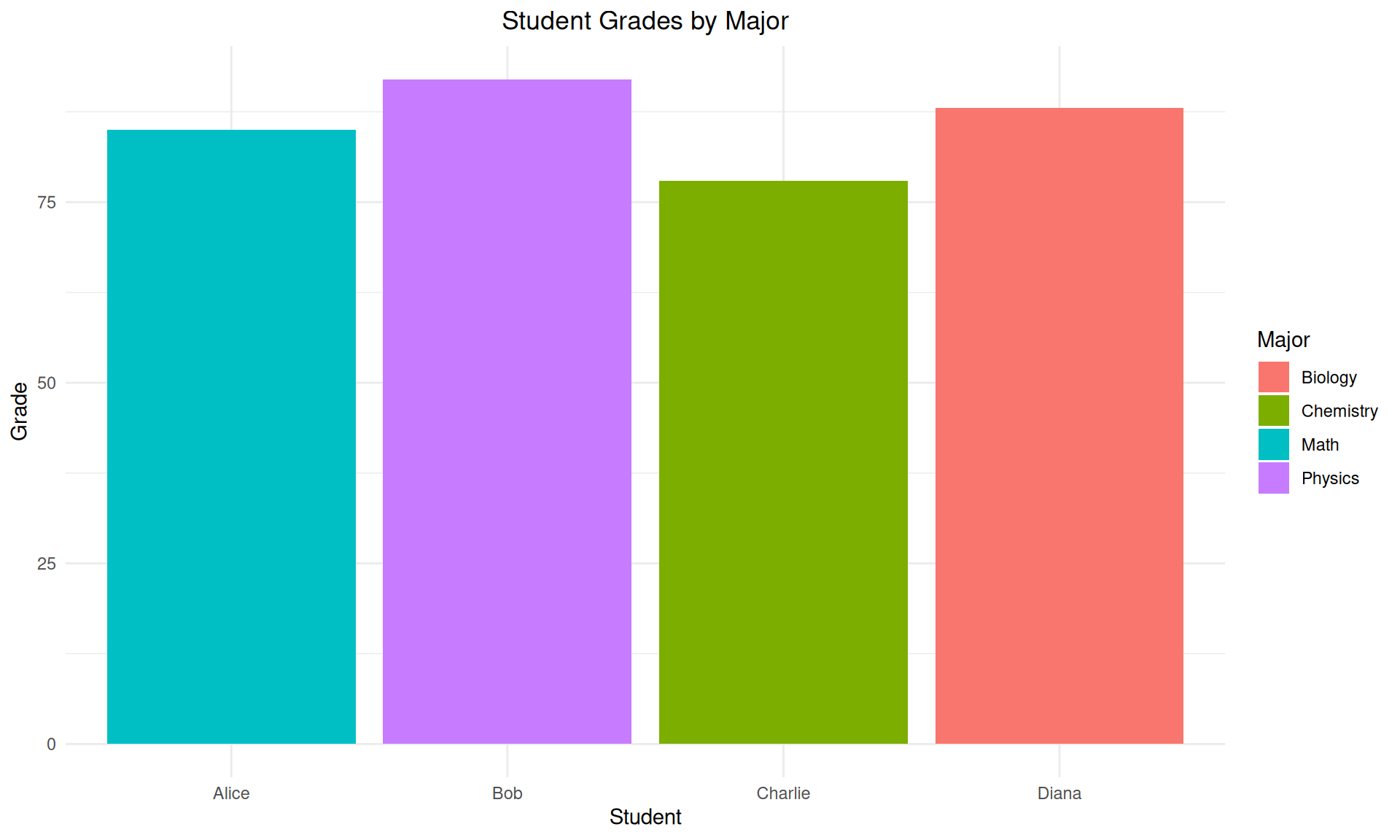
Visualization Benefits: Patterns become immediately obvious - Bob has highest grade (92), Charlie lowest (78)
Integrated Development Environment (IDE):
RStudio transforms R from a basic command line into a professional workspace with:
Four-Panel Layout:
Bottom Line: RStudio makes R accessible to beginners while remaining powerful for experts
Prerequisites and Steps:
Before Installing:
Installation Process:
After Installation:
First Steps:
2 + 2 in console# Create directories
dirs <- c("data", "figures", "R", "out")
sapply(dirs, dir.create, showWarnings = FALSE)
# Sample data (data.table already loaded)
sales <-
data.table(
month = c("Jan", "Feb", "Mar", "Apr", "May", "Jun"),
sales = c(100, 120, 150, 130, 160, 180),
region = rep(c("North", "South"), 3)
)
# Export files (packages already loaded)
fwrite(x = sales, file = "data/sales.csv")
write.xlsx(x = sales, file = "data/sales.xlsx")
cat("Files created:\n")
list.files(path = "data", full.names = TRUE)Why Use Projects?
Project Benefits:
Best Practice: Always work within projects - it saves time and prevents errors!
Next Generation Publishing System:
Quarto combines code, results, and narrative in professional documents:
Reproducible Research Revolution:
Traditional Approach Problems:
Quarto Solution:
Simple Installation Process:
Installation Steps:
Integration Benefits:
Result: Professional document creation becomes as easy as writing an email!
HTML (Web Sharing)
Best for:
Features:
PDF (Professional)
Best for:
Features:
Power: Write once, publish everywhere - same content, multiple professional formats!
# Weather data
weather <-
data.table(
day = c("Mon", "Tue", "Wed", "Thu", "Fri"),
temp = c(22, 25, 23, 27, 24),
humidity = c(60, 55, 65, 50, 58),
condition = c("Sunny", "Cloudy", "Rainy", "Sunny", "Partly Cloudy")
)
# Statistics with pipe and fastverse
weather %>%
fsummarise(
avg_temp = fmean(temp),
max_temp = fmax(temp),
min_temp = fmin(temp)
) avg_temp max_temp min_temp
<num> <num> <num>
1: 24.2 27 22# Create and save visualization
p2 <- ggplot(data = weather, mapping = aes(x = day, y = temp, fill = condition)) +
geom_col() +
labs(title = "Daily Temperature", x = "Day", y = "Temperature (°C)", fill = "Condition") +
theme_minimal() +
geom_text(mapping = aes(label = paste(temp, "°C")), vjust = -0.3)
# Display the plot
p2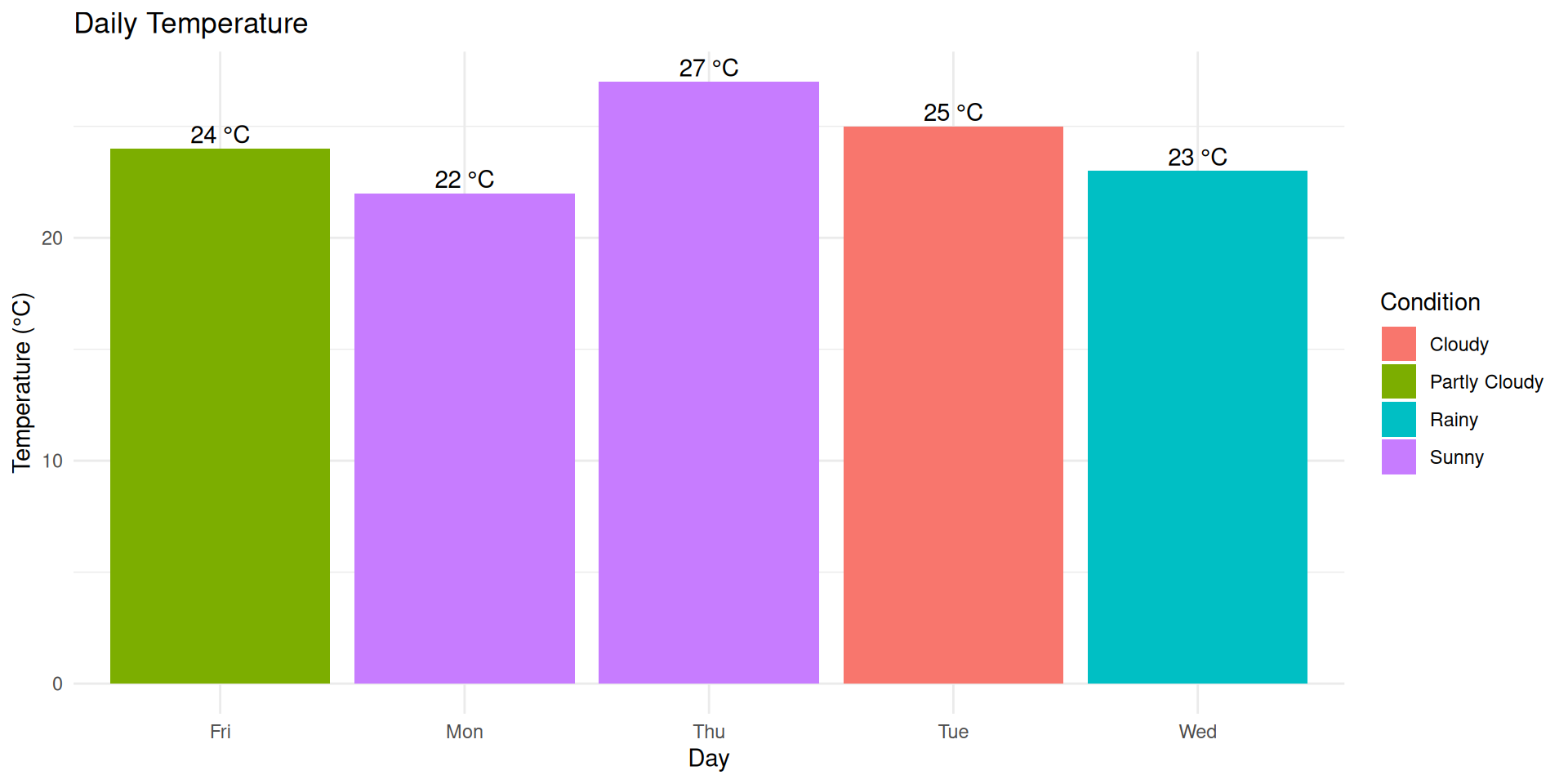
Key Features Demonstrated: Automatic code execution, professional formatting, figure captioning, statistical analysis integration
# Read data efficiently with explicit arguments (packages already loaded)
sales_csv <- fread(file = "data/sales.csv")
sales_excel <- read_excel(path = "data/sales.xlsx") %>% as.data.table()
# Compare datasets
identical(x = sales_csv, y = sales_excel)
rbindlist(l = list(CSV = sales_csv, Excel = sales_excel), idcol = "Source")File Format Comparison:
Why fread() over read.csv()?
Best Practices:
| student | math | english | science |
|---|---|---|---|
| Anna | 85 | 88 | 82 |
| Bob | 92 | 85 | 90 |
| Carol | 78 | 92 | 85 |
| David | 88 | 80 | 92 |
| Eva | 95 | 90 | 88 |
| Subject | Average |
|---|---|
| Math | 87.6 |
| English | 87.0 |
| Science | 87.4 |
# Reshape data for visualization
subject_avg <-
scores %>%
fsummarise(
Math = fmean(math),
English = fmean(english),
Science = fmean(science)
) %>%
pivot(
how = "longer",
names = list("Subject", "Average")
)
# Create and save comparison chart
p3 <- ggplot(data = subject_avg, mapping = aes(x = Subject, y = Average, fill = Subject)) +
geom_col(alpha = 0.8, show.legend = FALSE) +
labs(title = "Average Test Scores by Subject", x = "Subject", y = "Average Score") +
theme_minimal() +
geom_text(mapping = aes(label = round(x = Average, digits = 1)), vjust = -0.3) +
ylim(0, 100)
# Display the plot
p3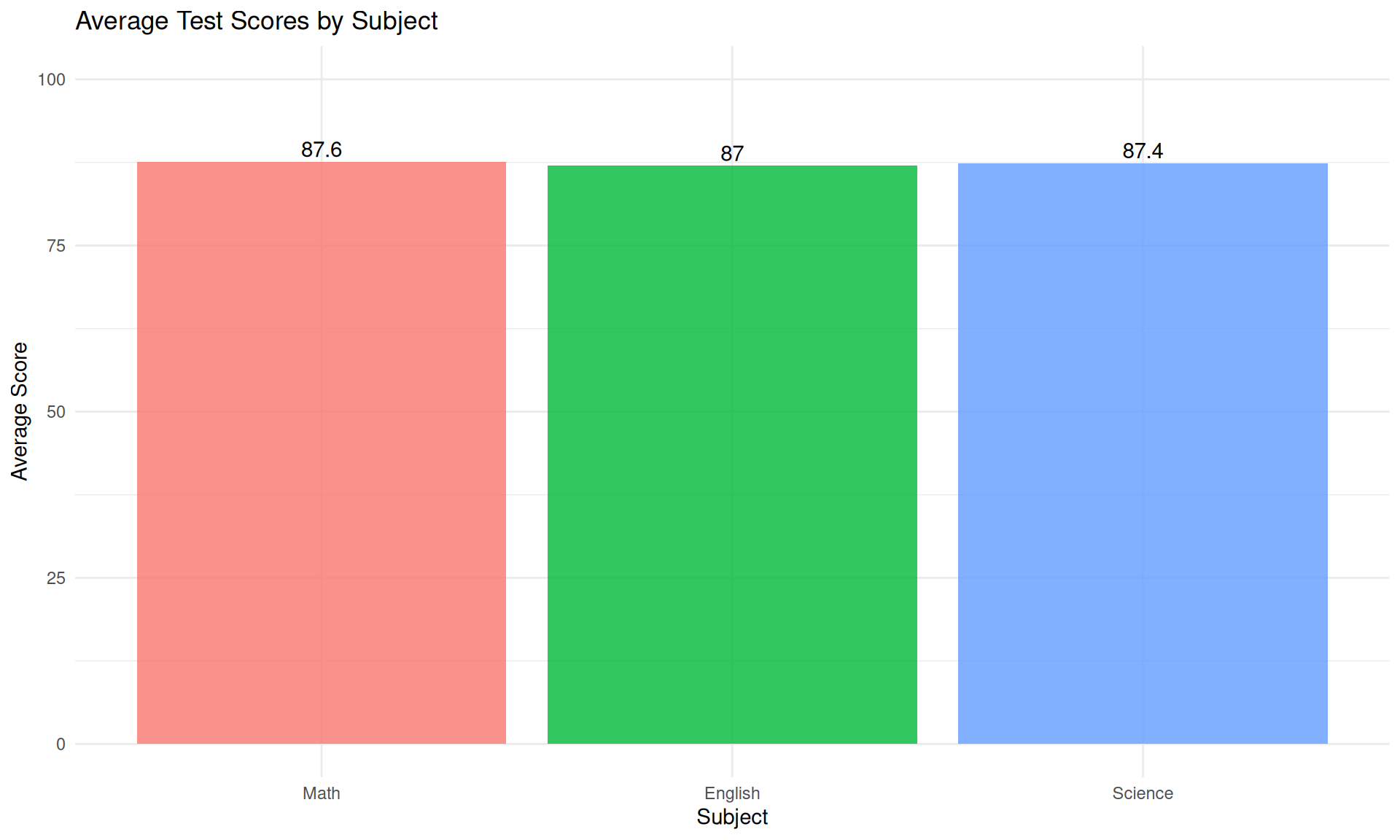
Insight: Visualization immediately reveals that Math scores are highest on average, demonstrating the power of charts over tables alone.
Built-in Help System:
?function_name for documentationhelp.search("topic") for related functionsexample("function") for working codehelp(package = "packagename") for overviewExternal Resources:
Remember: Every expert was once a beginner - the R community is known for being welcoming and helpful!
Critical Mistakes to Avoid:
Mean ≠ mean"Alice"library(package) first( needs a )round(x = 3.14, digits = 2)Project Organization:
my-analysis/
├── data/ # Raw data files
├── R/ # R scripts
├── figures/ # Generated plots
├── out/ # Output files
└── README.md # Project descriptionBest Practice: Develop good habits early - they save hours of debugging later!
Essential Shortcuts:
Navigation Shortcuts:
Time Saver: Master 3-4 shortcuts first, then gradually add more - they dramatically speed up your workflow!
Package Problems:
install.packages("packagename")Data Import Issues:
encoding = "UTF-8" parameter"data/file.csv"Debug Strategy: Read error messages carefully, Google specific errors, check documentation, ask for help - in that order!
Technical Skills Mastered:
✅ Installation - R, RStudio, Quarto setup
✅ Basic Operations - Math, statistics with fastverse
✅ Data Management - Creating and manipulating data.table
✅ Visualizations - Professional charts with ggplot2
✅ Reports - Dynamic documents with Quarto
✅ Best Practices - Explicit arguments, project organization
Conceptual Understanding:
✅ Reproducible Research - Code + results + narrative
✅ Modern Workflow - Projects, version control, collaboration
✅ Professional Output - Multiple formats from one source
✅ Community Resources - Help systems and support networks
✅ Troubleshooting - Independent problem-solving skills
Achievement Unlocked: You now have the foundation for modern data science!
Immediate Next Steps:
Skill Development Path:
Remember: Every expert started exactly where you are now - the key is consistent practice!
Free Online Books:
Interactive Learning:
Community Resources:
Professional Development:
You’re Joining a Global Community:
These tools are used daily by:
Remember:
Your Mantra Going Forward
Always use explicit argument names, save your work regularly, and don’t hesitate to ask for help when you need it.
Key Takeaways:
Contact & Resources:
Happy Analyzing! 🎉📊📈
# Load all required packages for this tutorial
library(data.table) # Fast data manipulation and file reading
library(fastverse) # Collection of fast R packages for data science
library(tidyverse) # Collection of packages for data science workflow
library(readxl) # Read Excel files (.xlsx, .xls)
library(openxlsx) # Write Excel files and advanced Excel operations
library(knitr) # Dynamic report generation and table formatting
library(ggplot2) # Advanced data visualization (part of tidyverse)Package Ecosystem Overview
data.table (Dowle and Srinivasan 2023) - High-performance data manipulation, much faster than base R data.frame
fastverse - Collection of fast, complementary packages for efficient data science workflows
tidyverse (Wickham and Grolemund 2016) - Integrated packages for data science: ggplot2, dplyr, readr, and more
readxl & openxlsx - Read and write Excel files without requiring Excel installation
knitr - Dynamic document generation and professional table formatting
ggplot2 (Wickham 2016) - Grammar of graphics for beautiful, publication-ready visualizations

Introduction to R